Installing Stripe S700 PINpad (Credit Card terminals) - US Customers
This article is for customers who've received a Stripe S700 PINpad terminal
(for new or existing store locations) and need to install it into the Value Add Center kiosk.
Required Parts
- Stripe S700 PINpad terminal
will include an Ethernet Hub, a phone charge style Power Brick, and USB cable with right angle connector:
- VAC mounting bracket for S700 PINpad terminals (2 piece bracket):
S700 PINpad Terminal Installation
For those who just need a quick refresher,
below is a picture showing what the final setup will look like (from the inside of the VAC) once the PINpad terminal has been connected to the VAC kiosk correctly.
Essentially the PINpad terminal only connects to the VAC's main control board's AUX1 Ethernet Port, via the short blue Ethernet cable that's already plugged into it;
then the PINpad's power cable will be plugged into the same power bar that's providing the entire VAC with power:
Step 1 - Remove the existing PINpad Terminal (if this is a replacement terminal)
If you presently have an older PINPad terminal installed on the VAC, you'll need to remove it first.
To do so, you can work backwards from this installation article;
or if you're replacing a different model terminal, below are links to the installation instructions for other models:
Step 2 - Secure the S700 Terminal, to the VAC's Mounting Bracket
You'll be mounting the terminal to the large mounting bracket.
Make sure to use the Right Angle USB cable to plug into the terminal itself;
and you'll route this cable through the oval shaped hole near the top of the bracket, like in the picture below:
You'll slide the S700 terminal, into the mounting bracket, to get it into place.
The PINpad terminal itself will be secured to this bracket with 1 Countersunk-security screw that's provided with the terminal;
this screw will go in through the middle hole, on the back side of the mounting bracket (red box below), and screw into the terminal itself:
There are 4 nuts, on the outside corners of the mounting bracket.
These nuts will secure the mounting bracket itself, to the VAC kiosk:
Do NOT install the smaller bracket cover yet, as this cover (pictured below) covers the PINpad terminal's power button:
You will need to power ON the PINpad terminal for the first time, once the cables are connected to the VAC's main control board.
Step 3 - Connect the PINpad Terminal's Power and Ethernet Cable to the VAC
The PINpad terminal and bracket assembly will sit on this part of the VAC kiosk:
Pass the PINpad terminal's harness through the square hole, to get the harness to the inside of the kiosk.
You can then use the 4 nuts to secure the bracket to the VAC.
From the inside, you will connect the Ethernet hub, to the USB cable plugged into the terminal;
and then plug the power brick into the USB cable coming from the Ethernet Hub:
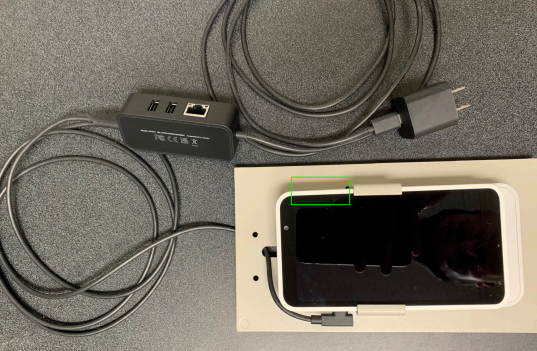
The power brick can then be plugged into any available outlet, on the power bar inside the VAC kiosk.
The VAC control board has 2 Ethernet ports in the top left hand corner:
The PINpad terminal needs to be connected to the AUX1 ethernet port, on the VAC control board (ethernet port on the left);
this port will usually already have a short blue ethernet cable connected to it.
The other end of the short blue ethernet cable needs to be plugged into the PINpad terminal's Ethernet hub:
Step 4 - Power the PINpad Terminal ON, and Connect to the VAC's Ethernet Network
Turn on the S700 PINpad by holding down the power button on the right side (highlighted by the green square in the image below):
Once the PinPad has turned ON, pressing the power button will function to sleep or wake the device.

Note: if the S700 PINpad is NOT connected to a Power Supply, it may go into Sleep Mode, where the screen will turn off.
If the PINpad turns ON, and shows as having a charge of at least 30% (top right corner of the display screen); continue on with the rest of the steps.
Otherwise it is advised to let the S700 PINpad gain a charge of at least 30% before continuing (approx. 30 minutes of uninterrupted charging).
Connecting the terminal to the VACs Ethernet network, for internet connection:
Once the terminal powers ON for the first time, it usually asks you to select a Language and Country;
once those have been selected, the terminal should bring you to the Choose network screen shown below:
Once on the Choose network screen,
you should see a blue button at the bottom of the terminal labeled "Continue with Ethernet".
Select this option to connect the PINpad terminal to the VAC's internet (via the Ethernet cable)
If you are NOT seeing the Continue with Ethernet button; check to make sure that:
- you have the Ethernet cable fully plugged into the PINpad terminal's Ethernet Hub
- you have correctly plugged the Ethernet cable into the VAC's AUX1 ethernet port (do NOT connect it to the VAC's LAN ethernet port)
- the Ethernet Hub is getting power from the charging brick that's plugged into the VAC's power bar.
If all of the above are correct, and you're still not seeing the Continue with Ethernet option;
connect the terminal to the location's WiFi network, as it's possible the terminal needs to download updates before it can utilize the VAC's wired internet.
Note: if you're unable to get the terminal to connect to the internet via ethernet, or a WiFi connection, contact the Laundroworks support team
Once the PINpad has established an internet connection, it should automatically go into an Update mode,
the terminal will start downloading any available updates, which usually take approx. 5-10 minutes to complete.
The terminal may reboot itself a couple times during these updates;
but once all updates have completed, the PINpad should land on it's normal idle screen, which simply display the “Cents” Background shown below:
Once you're seeing the above screen, the hardware installation of the PINpad terminal has been completed successfully.
Installing the Power button Bracket-Cover:
As shown in the image below, place the power button Bracket-Cover over the top of the S700 PINpad
and secure it, from the inside of the VAC, using the 2 provided nuts:
Note: although the S700 PINpad does support Swipe-Transactions via the Slot at top-back
of it;
in order to secure the S700, and prevent tampering of it, Swipe-Transactions are
effectively disabled
by way of how it is to be affixed to to the Bracket/Holder and the VAC itself.
Step 5 - Registering the PINpad Terminal to your VAC Kiosk
In most cases, the PINpad terminal will already be registered to your VACs before you receive them;
however once the terminals go online for the first time, the Laundroworks support team may need to make additional configuration changes on our end, before the terminals are able to start processing any credit/debit card payments.
Once the VAC kiosk, and PINpad terminals are online, if they're unable to process a credit/debit card payment,
contact the Laundroworks support team so we can make the necessary configuration changes to get the terminal working
Laundroworks Support Email: support@laundroworks.com
Laundroworks Support Phone Line: 1-888-629-8620 (Mon to Fri; 9am to 5pm EST)