Configuring WashLynx Account Permissions
This article discusses what all of the different configuration/permission options control, in the Card Tracker's WashLynx tab.
For details on how to use the WashLynx app, review our How-To Use the WashLynx App article.
If you look up a WashLynx account number, using the Card Tracker, you will see a WashLynx tab where you can enable the account to start working in the store, and configure what types of operations a particular WashLynx account holder has access to:
When making any changes to any permissions on the WashLynx tab, make sure to click on the Save button at the bottom of the page to confirm the changes:
If the changes were saved successfully, you will see a confirmation message near the top of the page:
Enabling a new WashLynx Account:
In order to start configuring a WashLynx account for an employee, that employee needs to first:
- download the WashLynx app onto their phone: https://app.washlynx.com/
- then create their new WashLynx account (either by signing up with an email address/password, or by linking their account to the google/apple account signed in on the device.
- download the WashLynx app onto their phone: https://app.washlynx.com/
- then create their new WashLynx account (either by signing up with an email address/password, or by linking their account to the google/apple account signed in on the device.
Once they've created a WashLynx account on their phone, they will be presented with the following screen:
At this point, someone who has Admin access to your location's Laundro Portal will need to enable the newly created WashLynx account for that employee.
Use the Card Tracker to look up the newly created WashLynx account number (this will be displayed on the app screen).
Navigate to the WashLynx tab and click on the Account Enabled check box to enable this WashLynx account:
Click on the Save button at the bottom of this page to save the changes.
Once the WashLynx account has been enabled, you will see a location ID listed as the Primary Location for that WashLynx account.
If you have multiple locations, you can enable this WashLynx account to work for any of your locations by using the Assigned Locations section at the bottom of the page.
Next you'll want to configure the specific permissions/restrictions you want this specific WashLynx account to have.
Reader Service permissions
Get basic info:
This setting gives the ability for the account holder to collect basic info about any individual card reader (Support/Customer ID, Location ID, the reader # (washer/dryer #), and reader Firmware version) for any reader types the account has access to interacting with.
Activate:
Gives the ability for the account holder to Activate a card reader any store location their account has access to. This is similar to the functions of an Activation Card.
Deactivate:
Gives the ability for the account holder to Deactivate a card reader that is currently activated to any store location their accout has access to. This is similar to the functions of a Deactivation card.
Enter machine service modes:
Gives the ability to enable/disable the out of service mode for an individual card reader that is a reader type the account has access to interacting with.
This is useful if a machine is out of service and you don't want customers to accidental attempt to start that machine.
View/Change settings:
Gives the ability to view and change any individual reader's settings for the specific reader types that the account has access to interacting with.
Check status:
Gives the ability to get additional diagnostic information (Wireless Signal) from any specific card reader types that the account has access to interacting with.
Reboot Reader:
Gives the ability to reboot a card reader without needing to unplug the reader, or machine, from power
Reader Types
You can limit the above Reader Services to only work with specific types of card readers
Any particular WashLynx account will only work on the readers types you select below:
Machine Use Allowance
For Service:
When attempting to start a machine, the WashLynx app will ask for the account holder to give a reason for starting that machine.
Usually there are only 2 reasons to start a machine; for testing purposes (Service), or for helping customers (Customer Support).
Usually there are only 2 reasons to start a machine; for testing purposes (Service), or for helping customers (Customer Support).
By checking off this check box, you are giving the account holder the ability to select "for service" as a reason for starting a machine.
When viewing these transaction in the Card Tracker's Usage Report tab, you will see the reason that was selected for this specific machine start as well as any notes that were included when the machine was started:
For Customer Support:
When attempting to start a machine, the WashLynx app will ask for the account holder to give a reason for starting that machine.
Usually there are only 2 reasons to start a machine; for testing purposes (Service), or for helping customers (Customer Support).
Usually there are only 2 reasons to start a machine; for testing purposes (Service), or for helping customers (Customer Support).
By checking off this check box, you are giving the account holder the ability to select "for customer support" as a reason for starting a machine.
When viewing these transaction in the Card Tracker's Usage Report tab, you will see the reason that was selected for this specific machine start as well as any notes that were included when the machine was started:
Require account to be Clocked-In:
This restricts all permissions given, to only working if this WashLynx account is currently Clocked-In.
If this option is selected, you must also enable Clock In/Out capabilities for this account (see Clock In/Out section for more details).
Require explanation note:
This enforces that a reason must be given for any machine starts that this particular WashLynx account holder attempts.
If no note (Explain Reason) is entered, when they attempt to start the machine, they will receive an error message and the machine will not start:
Washer/Dryer/Vending machine daily use limit:
If you would like to give a WashLynx account holder the ability to use machines, but want to limit the amount that this person is able to use their account to start machines, you can check the checkbox for any machines you want to set daily use limits for.
If you do NOT check any of these boxes, then the daily limits, for this particular WashLynx account, will be unlimited.
Total cycle cost:
If this is checked off, the system will limit this account to only being able to start these machines while the total cost of machine starts is below the threshold that you enter in this field.
e.g. if all Washers cost $4 to start, and you set this value to $50, this account holder will be able to start 12 washers daily since those starts would total to $48.
They would not be able to start a 13th washer because that would bring their total cycle cost above $50.
Total cycles:
If this is checked off, the system will limit this account to only being able to start these machines while the total amount of cycles is below the threshold that you enter in this field.
This is useful if you have machines that cost different amounts, and you want to limit this account to only being able to start a certain amount of cycles per day, and don't care what the dollar amount of those cycle starts amount to.
Resetting Daily Limits:
If at any point a WashLynx account holder has gone over their daily limit, but you want to allow them to do additional starts on this day, you can reset their daily counters by clicking on the Reset button to the right of that daily counter:
VAC Service
Get basic info:
Allows the account holder to be able to collect basic info from the VACs
(Support/Customer ID, Location ID, VAC ID, and Firmware version of the NFC card reader 1 board).
(Support/Customer ID, Location ID, VAC ID, and Firmware version of the NFC card reader 1 board).
Check status:
Allows the account holder to trigger the System Status screen to show up on the VAC's touch screen
(this is the same screen that you can access with a Property Management Card).
Perform Tests:
Gives the account holder access to various system tests that normally require a Property Management Card to access.
Reboot VAC:
Allows the account holder to trigger a VAC software reboot.
This is the same type of reboot that can be triggered from the Laundro Portal's VAC Commands page:
Activate:
Gives the account holder the ability to Activate a deactivated VAC control board.
This functionality is usually only needed when installing a replacement VAC Control Board.
Deactivate:
Gives the account holder the ability to Deactivate a VAC Control board that is currently activated to a location the account holder has access to.
Register Cash Collections:
Allows the account holder to register a collection.
This is the same functionality as a Collection Card.
Allow cash deposits:
Gives the account holder the ability to deposit loose cash into the VAC so that it can be stored inside the cash box.
This is the same functionality as the Cash Deposit option you get with a Property Management Card:
Menu Access
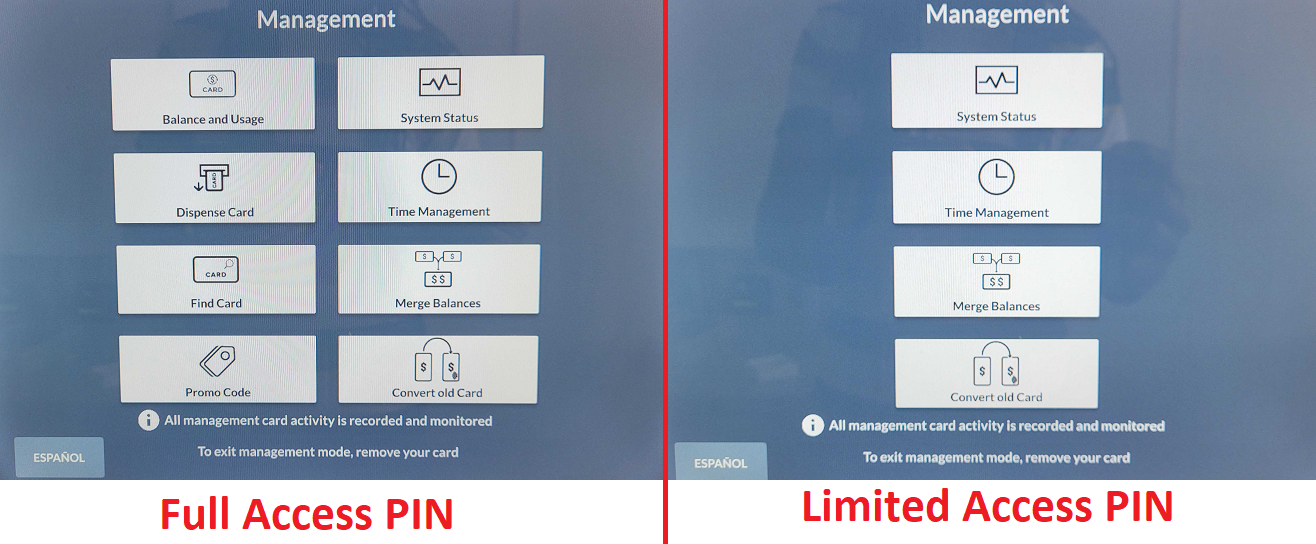
These options are used to determine if the specific WashLynx App account has the ability to access the Management menu on VACs equipped with a touch screen.
- None options prevents the account holder from accessing the VAC's Management menu
- Full Access option gives the account holder access to the Full Access PIN menu
- Basic Access option gives the account holder access to the Limited Access PIN menu
Full or Basic will give access to the same Full Access, or Limit Access Management menus that are accessed via Management Cards by using their unique 4-Digit PIN:
VAC Card Operations
Dispense cards:
Allows the WashLynx account holder to dispense laundry cards from the VAC
Add/Change balances on cards:
Gives the WashLynx account holder the ability to add or change balances on customer's laundry cards
Daily card operation limits:
These restrictions can be used to limit the amount of laundry cards the WashLynx account holder can dispense from the VAC.
This controls the total value that this account holder is able to add to laundry cards in a day, and/or the total amount of system cards this account holder can create:
If needed, these daily limits can be reset at any time by clicking on the reset button next to the daily limit you want to reset:
Wash Dry Fold (WDF)
Enable:
Gives the WashLynx account holder access to the Wash Lynx App's Wash Dry Fold section, where they can view WDF orders, and start machines against specific WDF orders.
This option needs to be selected if you want this WashLynx account to be able to see, and start machines against, pending Wash Dry Fold orders.
The App will display any Wash Dry Fold orders that populate in the Laundro Portal's Wash Dry Fold section:
Allow manual order entry in App:
If this option is selected, it gives the WashLynx account holder the ability to create WDF orders using the WashLynx app
Account Options
Clock In/Out:
Enabling this option will give the WashLynx account holder the ability to Clock In/Out using their App at the VAC01 kiosk.
If you have selected the "Require account to be Clocked-In" restriction, you'll need to ensure that you also enabled this option so the account holder is able to clock-in/out.
Account Settings:
When enabled this option allows the account holder to access to the account settings screen within the WashLynx App. It is typical to leave this setting enabled, however you may consider disabling this option if employees are using a shared device.
Assigned Locations
If you have more than 1 location, under your Support ID, you will have the ability to set which locations a specific WashLynx account can be used in:
Any location listed under the Selected Locations are locations that this WashLynx account will work in.
To add additional locations to this WashLynx account, click on the  icon next to that location to add it to the Selected Locations list:
To remove a location from this WashLynx account, click on the  icon next to the location you want to remove: